Back in 2008, I purchased a UMAX ASTRA 5600 scanner and it was working fine with Windows XP SP-3 Operating System. For the last 12 years I have not used a scanner and I literally forgot that I have a scanner 🙂.
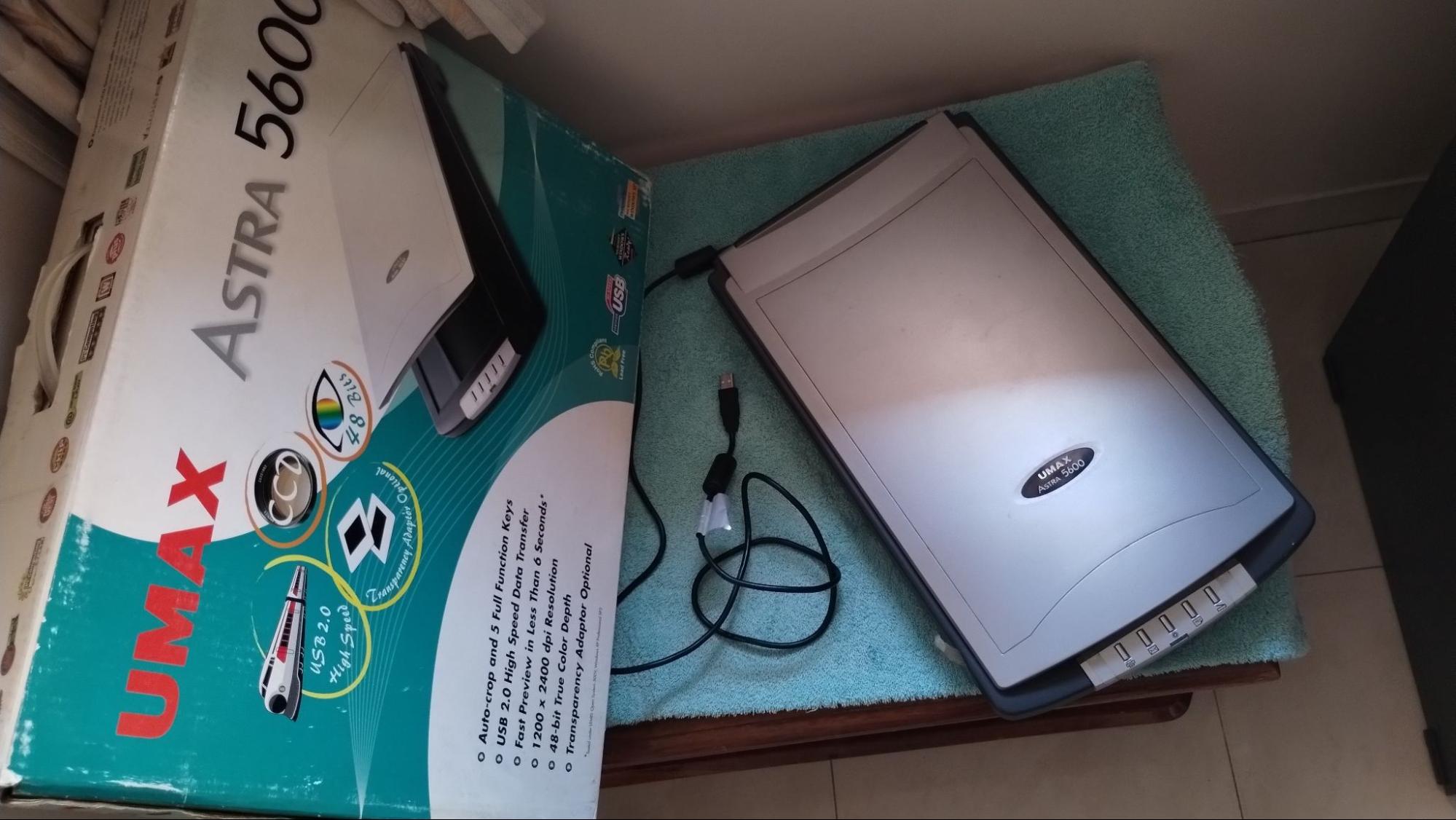
There are lots of mobile apps that create good PDFs out of your photos and they do moderate work mimicking scanners. I needed to use the scanner a few times, but these mobile apps are working fine for me.
Another reason I was not using this scanner is that the UMAX ASTRA 5600 scanner was not working on my machine which has Windows 10 operating system. Also I didn't find any driver for the scanner supporting Windows 10. One fine weekend, I decided to play around and have this scanner work with my machine and I did succeed.
Here's how I get it working.
Step 1: Install driver in Windows XP compatibility mode
I already had the original CD for the scanner, which I copied onto my machine. Before installing it, I changed the setup's compatibility mode to "Windows XP - SP 2".
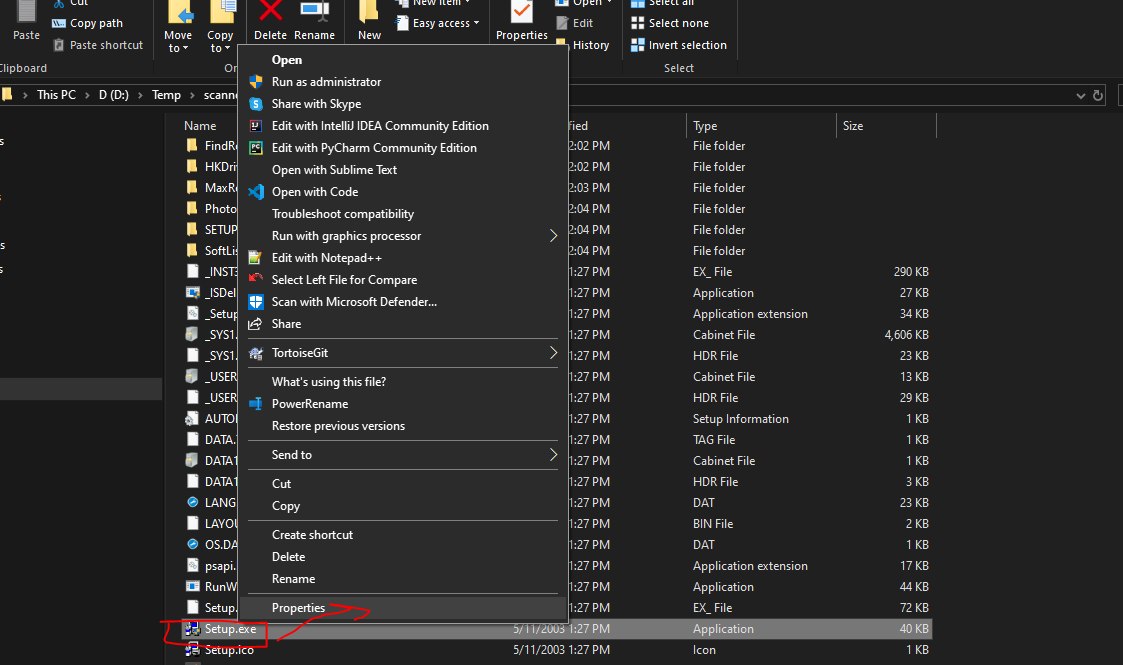
It can be done in the following steps:
- Right click on Setup.exe
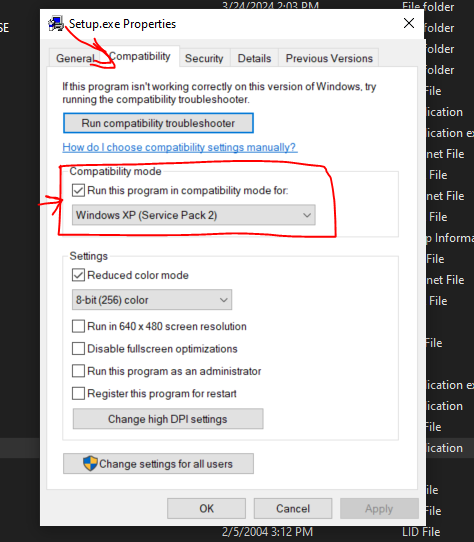
- Navigate to the "Compatibility" tab
- Check the compatibility mode option and select "Windows XP (Service Pack 2)"
- Click OK
Step 2: Install the driver
Next obvious step is to install the driver. Follow all the steps and install it. Also make sure to restart your machine after installation if it requires.
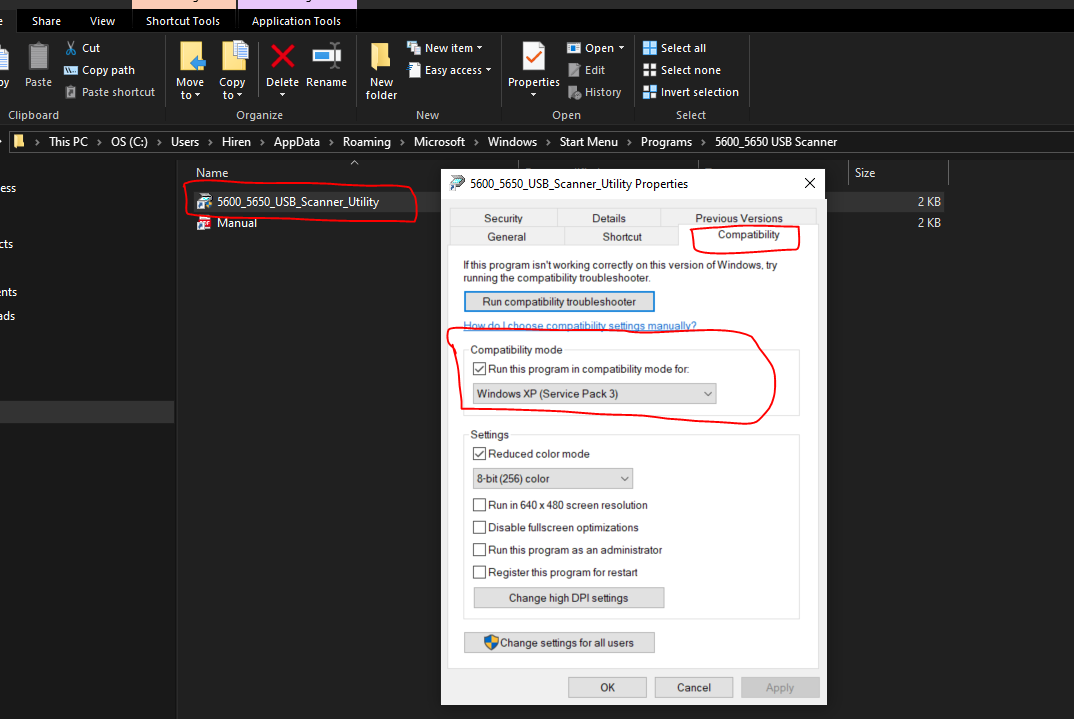
Step 3: Configure the installed scanner driver's compatibility mode
Next step is to locate the installed driver and also change its compatibility mode to "Windows XP (Service Pack 2)".
The installed EXE can be easily located by right clicking in the program menu and opening the file location.
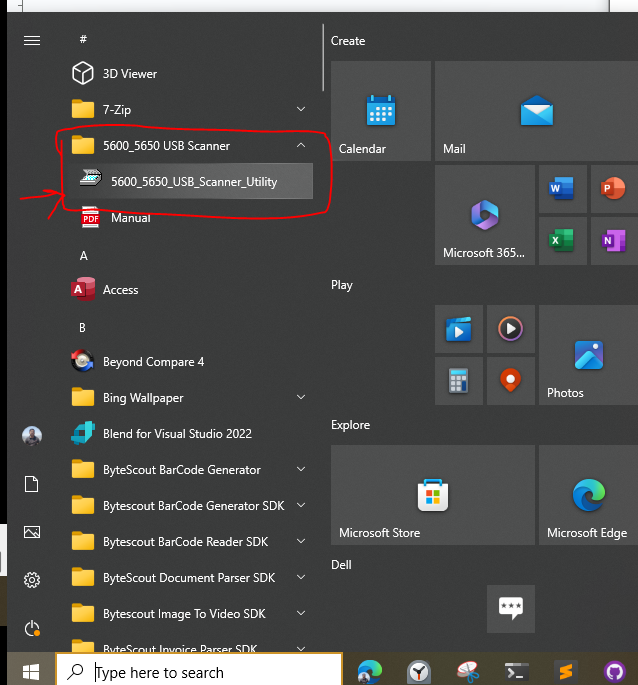
Locate the EXE shortcut in the opened file folder, and repeat the same process to change its compatibility mode.
Step 4: Try it out
Now we're all set to try it out. There is plenty of scanner software, but I ended up relying on the free version of Paper Scan.
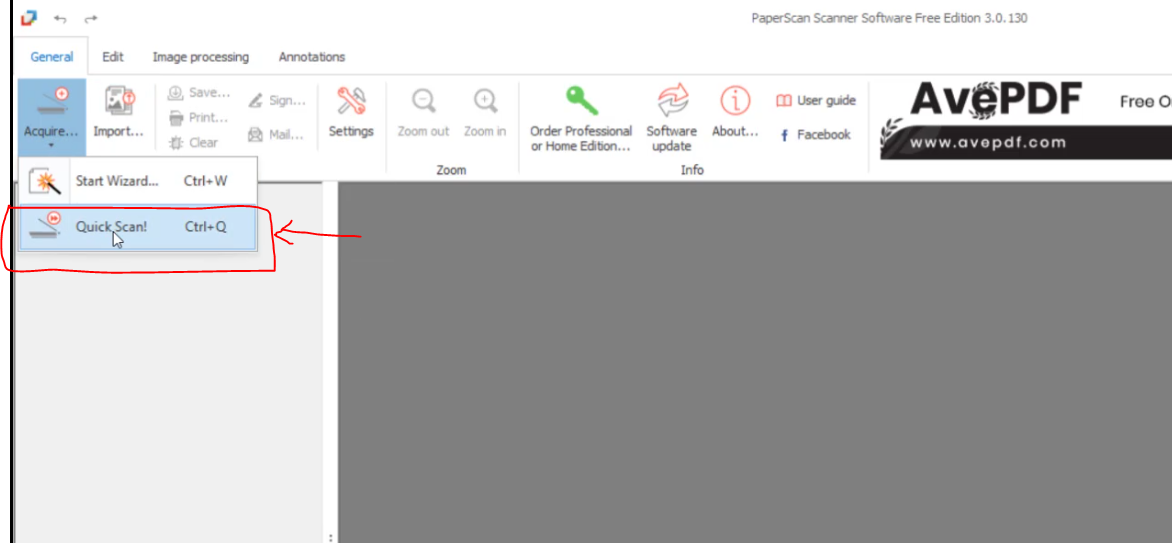
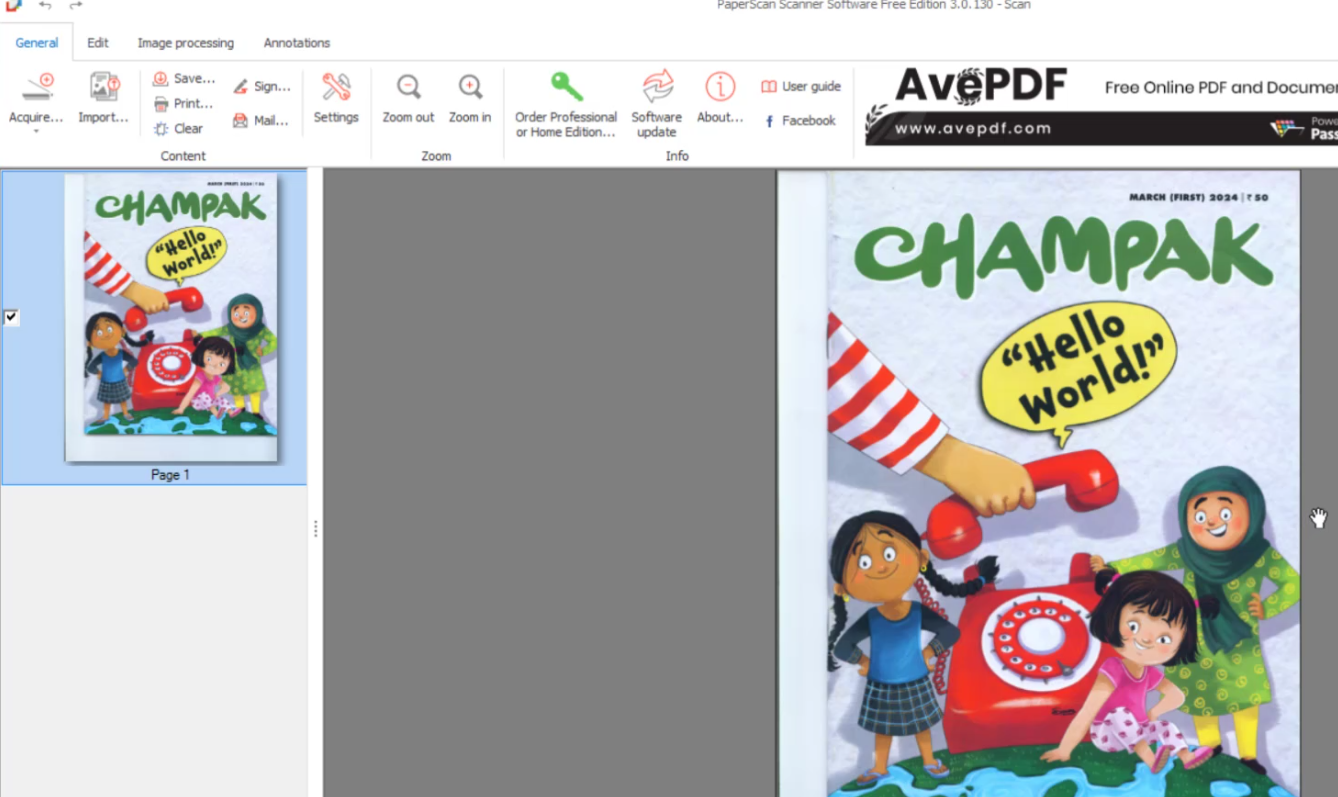
From there, click "Quick Scan" and voila — you have your scanner working!
Useful links
If this doesn't work out for you, there are plenty of resources available on YouTube as well. For example, this video was helpful to me initially.