Recently, I delved into implementing microservices and developed a basic proof-of-concept project. You can find the source code here.
In this article, I'll outline the steps to create this project.
Step 1: Setting up the solution
Start by creating a .NET Core solution with two Web API projects:
- Customer API (Port 8002): Responds with "Hello There!" to GET requests.
- Orders API (Port 8003): Similarly, returns a greeting message.
These APIs serve as our foundational microservices endpoints. Below is a visual of the project structure in Visual Studio:
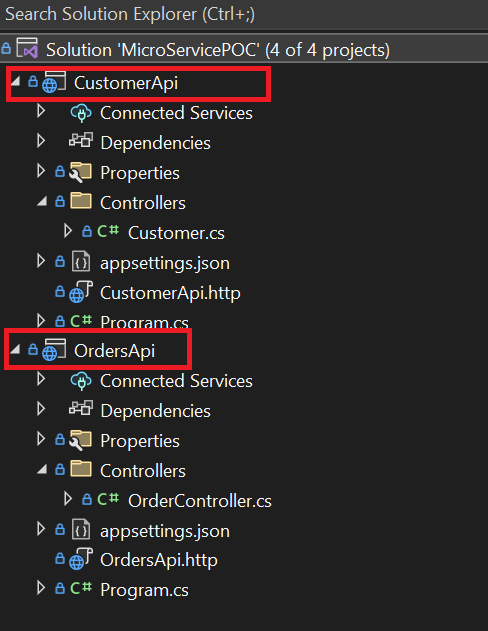
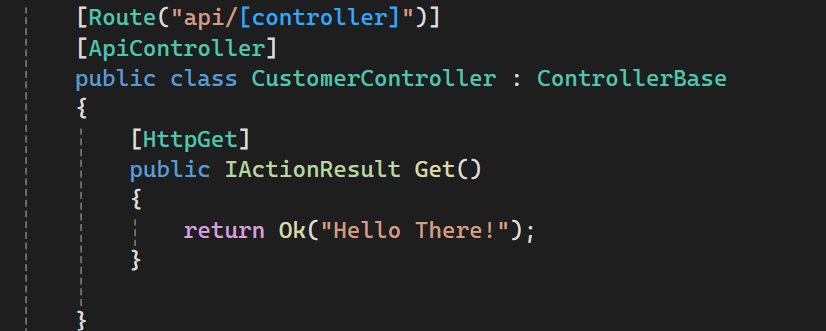
These APIs are straightforward, responding with string messages to GET requests. Here's a snippet from the Customer API:
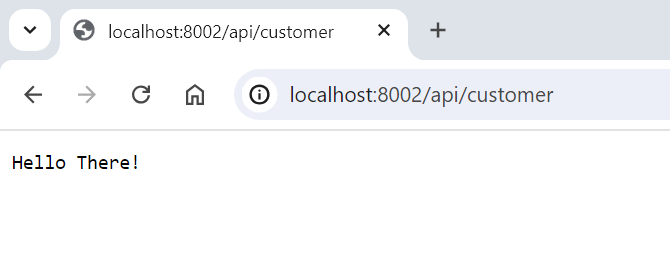
For example, navigating to the Customer API on port 8002 yields the message "Hello There!":
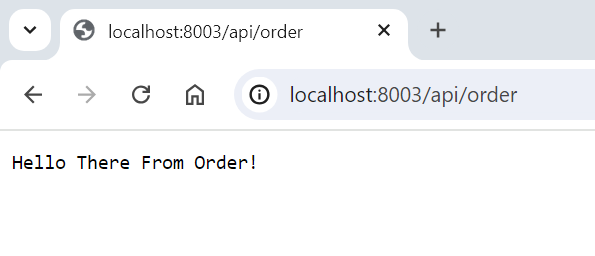
Similarly, the Orders API on port 8003 displays a similar greeting:
Step 2: Dockerizing the project
If Docker support was not added during project creation, integrate it now and include the project in your Docker orchestration. Here's a screenshot showing the project structure with Docker support and orchestration:
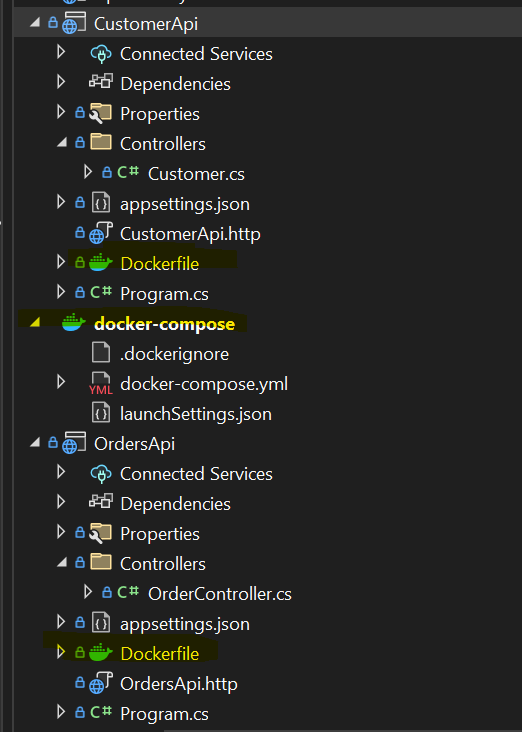
Step 3: Introducing an API gateway with Ocelot
Enhance the project by adding an API gateway using the Ocelot package. Ensure Docker support and orchestration are also configured for the API gateway. Below is a screenshot showing the project structure with the API gateway project:
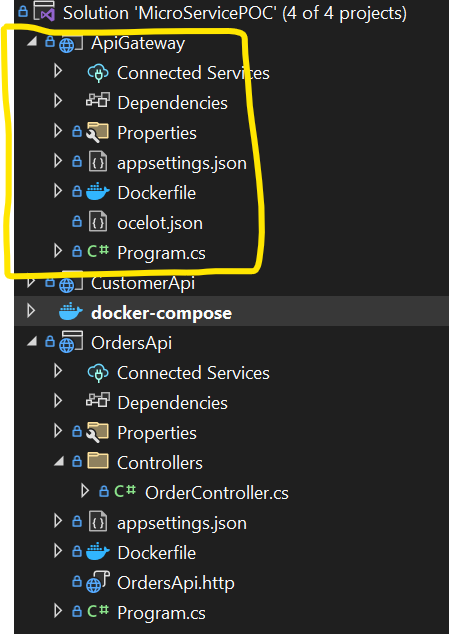
Step 4: Reviewing Docker Compose and Ocelot configuration
Review the Docker Compose file and Ocelot configuration (ocelot.json). Here's an example of the Docker Compose content:
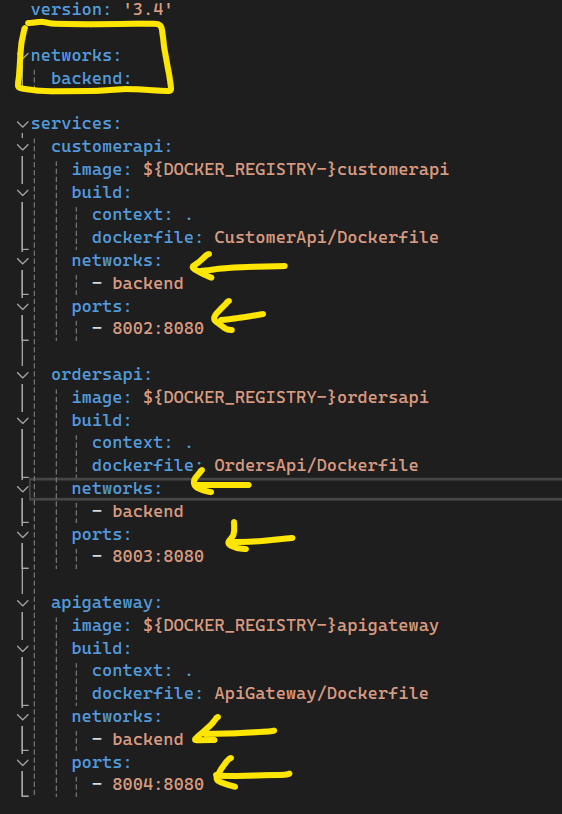
And here's a snippet from the ocelot.json configuration file:
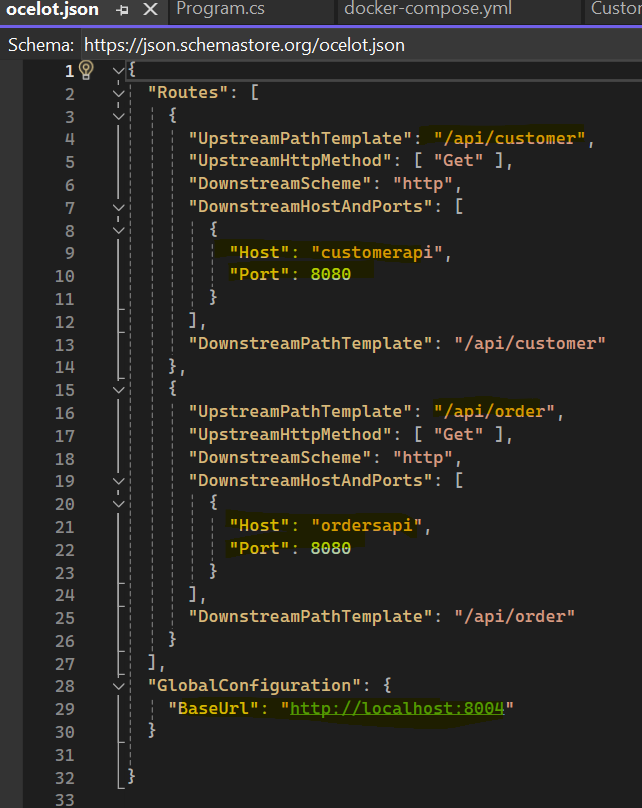
A few points to note:
- The Docker Compose file creates a network named "backend" and maps all three projects to it.
- Adjust the port mappings according to your environment, as default ports may vary.
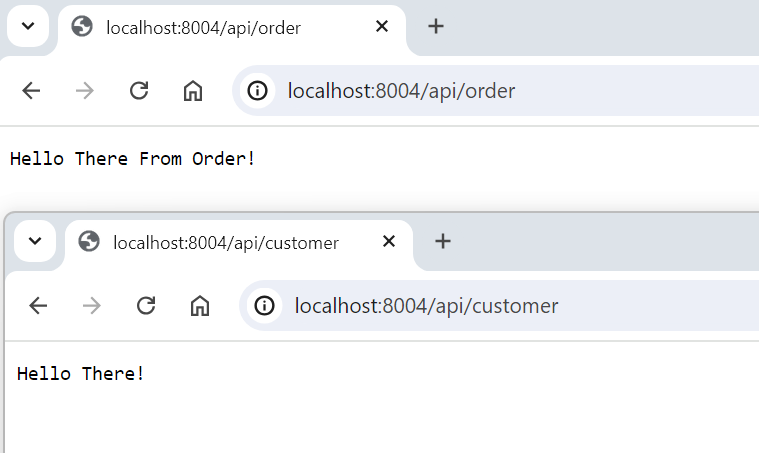
With the Ocelot API gateway in place, we achieve efficient redirection:
http://localhost:8002/api/orderredirects tohttp://localhost:8004/api/orderhttp://localhost:8004/api/customerredirects tohttp://localhost:8003/api/order
This setup simplifies management and enhances flexibility.
Summary
This quick walkthrough of a microservices POC with .NET Core and Docker demonstrates the power of modular architecture. Explore the source code and check out this YouTube playlist for more on microservices basics.